I wish I’d known this much sooner. NetSuite’s email capture script is a great way to incorporate incoming email directly into NetSuite.
First, my company uses Outlook 365 in the cloud. We set a rule to forward incoming email to a particular address on to NetSuite. The mail remains in the original mailbox in Outlook 365, but also arrives as though sent by the original sender in NetSuite. When it arrives in NetSuite, a custom Email Capture script reads the message, records all the detail such as FROM, TO, SUBJECT, BODY and all ATTACHMENTS into a custom record type. That record type is included in a saved search, which is then displayed as a shared dashlet, accessed by an entire department.
Individuals in the department assign themselves to the incoming emails and set a status letting their colleagues know they have it. That begins a workflow in NetSuite. It’s really slick, and really easy to implement.
First, here is a sample script. It’s written in SuiteScript 1.0. I was unable to find documentation on writing this in any other version of SuiteScript. Feel free to add comments to this article if I’ve missed something.
function process(email) {

    const IS_PRODUCTION = true;

    const valid_types = [
        'APPCACHE',
        'AUTOCAD',
        'BMPIMAGE',
        'CERTIFICATE',
        'CONFIG',
        'CSV',
        'EXCEL',
        'FLASH',
        'FREEMARKER',
        'GIFIMAGE',
        'GZIP',
        'HTMLDOC',
        'ICON',
        'JAVASCRIPT',
        'JPGIMAGE',
        'JSON',
        'MESSAGERFC',
        'MP3',
        'MPEGMOVIE',
        'MSPROJECT',
        'PDF',
        'PJPGIMAGE',
        'PLAINTEXT',
        'PNGIMAGE',
        'POSTSCRIPT',
        'POWERPOINT',
        'QUICKTIME',
        'RTF',
        'SCSS',
        'SMS',
        'STYLESHEET',
        'SVG',
        'TAR',
        'TIFFIMAGE',
        'VISIO',
        'WEBAPPPAGE',
        'WEBAPPSCRIPT',
        'WORD',
        'XMLDOC',
        'XSD',
        'ZIP',
    ]

    var fromAddress = email.getFrom();
    nlapiLogExecution('DEBUG', 'Email - from: ' + fromAddress.getName() + ', ' + fromAddress.getEmail());
    nlapiLogExecution('DEBUG', 'subject - ' + email.getSubject());

    var newRec = nlapiCreateRecord('customrecord_xxxxxxxxxxxxxxxxxxxxxxxxxxxx');
    newRec.setFieldValue('custrecord_xxxxxxxxxx', fromAddress.getName());
    newRec.setFieldValue('custrecord_xxxxxxxxxx', fromAddress.getEmail());
    newRec.setFieldValue('custrecord_xxxxxxxxxx', email.getSubject());
    newRec.setFieldValue('custrecord_xxxxxxxxxx', email.getTextBody());
    var newRec_id = nlapiSubmitRecord(newRec, true);

    var attachments = email.getAttachments();

    // This variable is here in case you wanted to add notes about attachments.
    // it is currently unused.
    var processing_notes = '';

    for (var indexAtt in attachments) {
        var attachment = attachments[indexAtt];
        nlapiLogExecution('DEBUG', 'Attachment: ' + attachment.getName() + ', ' + attachment.getType());

        // If the file name does not have an extension, skip it
        var fileName = attachment.getName();
        if (fileName.indexOf('.') <= 0) continue;

        // add a unique suffix to the file name, but leave the extension as-is
        var fileArray = fileName.split('.');
        var newName = '';
        for (var i = 0; i < fileArray.length; i++) {
            if (i == fileArray.length - 1) {
                newName += ('_' + (new Date().valueOf()).toString());
            }
            newName += ('.' + fileArray[i]);
        }

        // Lookup the file type to see if it is supported, else save as PLAINTEXT
        // This really won't affect being able to open and download the file.
        // It only affects filtering files by type.
        var file_type = attachment.getType().toUpperCase();
        if (valid_types.filter(function (p) { return p == file_type }).length == 0) {
            file_type = 'PLAINTEXT';  // Import nonrecognized file types as Other Binary File
        }

        var file = nlapiCreateFile(newName, file_type, attachment.getValue());

        // Save the file under a selected folder in the file cabinet
        file.setFolder(1111111111); //Internal ID of folder to hold imported attachments
        var file_id = nlapiSubmitFile(file);

        // Attach the file to a custom record type
        nlapiAttachRecord('file', file_id, 'customrecord_xxxxxxxxxxxxxxxxxxxxxxxxxxxx', newRec_id);
    }

    // here is where you'd include notes about attachments, perhaps those that were erroniously
    // saved under the PLAINTEXT type.
    nlapiSubmitField('customrecord_xxxxxxxxxxxxxxxxxxxxxxxxxxxx', newRec_id, 'custrecord_xxxxxxxxxx', processing_notes);
}
Once you upload your script to the file cabinet, go to Customizations >> Plug-Ins >> Plug-In Implementations >> New
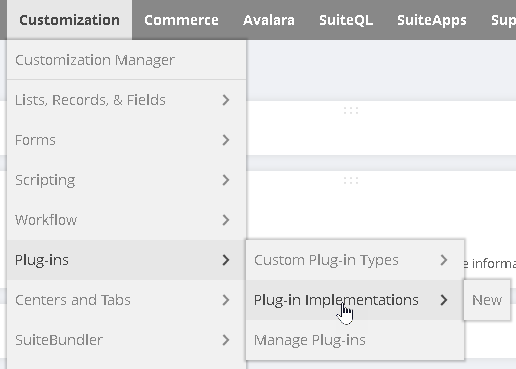
Select your script. Next, look for it under Manage Plug-Ins.
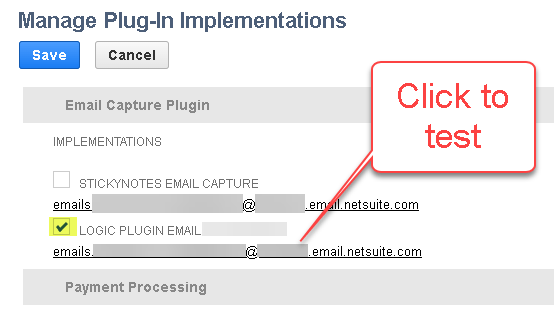
To test, click the link. It should open your default email client (in my case it is Outlook 365) and address the mail to this address. Send your test message and in a couple of seconds, it will be picked up and processed by the new script. It’s fast!
Once you are happy with your script, set Outlook 365 (the server-side in the cloud) to forward to this address.
It is important to understand that NetSuite will only allow your script to upload known file types. That’s why I’ve supplied an array of file types in the code. However, NetSuite will accept any file of any type as long as you fib and say it’s a known file type. So, my code tries to match the type with a known NetSuite file type. If there is no match, I tell NetSuite the file is type PLAINTEXT. It allows the file to be uploaded and saved. It does not affect downloading the file. It still comes down and is opened based on the file’s extension. The only thing it affects is your ability to filter files. In my case, I’ll have a lot of files of type PLAINTEXT that are actually some other format. And… I can live with that.
The other gotcha is NetSuite thinks files of same name are the same file. So my code adds a suffix based on an integer time stamp. So two files of the same name Kevin.text and Kevin.text will be saved as Kevin_[big unique integer number].text. When these files get attached to two separate custom records, the files are not be overwritten.
And that should be all you need to know about that!
 NetSuite Experiences
Afternoon! I am trying to implement your code and i’m not having success. I feel like i’m missing a part. Do you have to create a script deployment as well, or just use the script file inside the plug-in?
LikeLike
What I was trying to explain in the post, is that you create the plugin in Customizations >> Plugins >>Plugin Implementations. Then view it in Customizations >> Plugins >> Manage Plugins.
Manage Plugins displays the email address where NetSuite will receive the inbound email and pass it to your script as parsed parameters: To, From, Body, etc. You should forward outside emails, something like myplugin@whatever.com to the email address shown under Manage Plugins. By this, I mean if you use Exchange as your email server, in Exchange, forward myplugin@whatever.com to the email address shown in Manage Plugins. Be sure to check the box next to your plugin’s email address to activate it.
The code I provided is just an example. What your plugin does is completely up to you. You can save a file. or parse the body of the email and write to a custom table. It’s 100% up to you. The code I provided should give you a start. If you are unable to read the code and make sense of it, you might consider hiring a consultant to help you. Ping me back if you need a recommendation. I’m not able to offer fee based consulting. Cheers!
LikeLike
I got it figured out – thanks though and pretty cool!
LikeLike