NetSuite-Magento-Paystand Integration Notes

Paystand is NOT a traditional payment gateway. It actually goes beyond that. It interacts directly with both NetSuite and Magento. An example: When a sales order is created in Magento and paid for using Paystand, a customer deposit is entered directly in NetSuite (and associated with the sales order in NetSuite) by Paystand. It’s awesome!

The Paystand bundle was initially installed in our provision of NetSuite by Paystand’s staff. We gave them access and they got it working. It was great. That was years ago. So earlier this year, we needed to do the same with Magento.

Paystand offers what they call a “Standard Plugin” for Magento. With this plugin in place, when a sales order is created in Magento and paid for via a credit card, the card is taken via an iFrame served from a Paystand server in the cloud. Once the payment posts, the payment details are appended to the sales order in Magento. It’s awesome.

With some additional customizations, Paystand will take this a step further and enter a customer deposit into NetSuite. This is where we ran into a LOT of confusion. Hopefully these notes will clear that up, for anyone including myself that ever needs to do this again.

To save time, I’m not going to tell you all the things that took us off track. I’m simply going to tell you how we did our “customizations”.

For starters, everything can be done from the NetSuite side. Our final solution included a very simple mod to Magento, whereby a new sales order triggered a RESTful API call back to NetSuite to start replicating the sales order in NetSuite. This could just as easily be done on a schedule, where a scheduled script wakes up on an interval and queries Magento for new sales orders.

Notes about the sales order in NetSuite… It MUST have the same total as the sales order in Magento. More on that in a second. One thing Paystand is not good at is acknowledging errors. If you break a rule, anything, no errors are thrown. One of the rules: A payment must be less than or equal to the NetSuite sales order’s grand total. Otherwise, it will be considered an overpayment.

So… the integration… Here’s the “How to” in a nutshell. For starters, you’ll need to get a connection to Magento. See my post on that subject:
https://followingnetsuite.wordpress.com/2023/06/07/netsuite-magento-integration-made-easy/

Next, you’ll need the security tokens from your Paystand dashboard. You’ll find these values filled in in the Integration tab of your dashboard.

Use the Magento API to get a copy of the sales order in Magento. As you can see, the response is robust! It’s got everything.

Create the matching sales order in NetSuite and get it’s Internal ID. The payment section of the Magento sales order (after some time) will contain the Paystand payment ID. My example above was not a credit card payment (but a purchase order).

In our integration, we opted to use the Paystand API to get the payment ID directly from Paystand, without waiting for it to show up in the Magento sales order. The key to this is using the Magento quote_id. It is present in both the Magento sales order and the Paystand Payment. Matching the two produces a hard link between the sales order in Magento and the payment in Paystand.

Since you just created the new sales order in NetSuite, you’ve got all you need to make the association with Paystand. Here’s how that’s done.

Request an access token from the Paystand API.

Use the token you just got back in the subsequent request. In Postman, I saved the token in the Authorization tab of the workspace. It could have gone directly into the “Assign Payment to Sales order” request header. Doing it this way is a good practice.
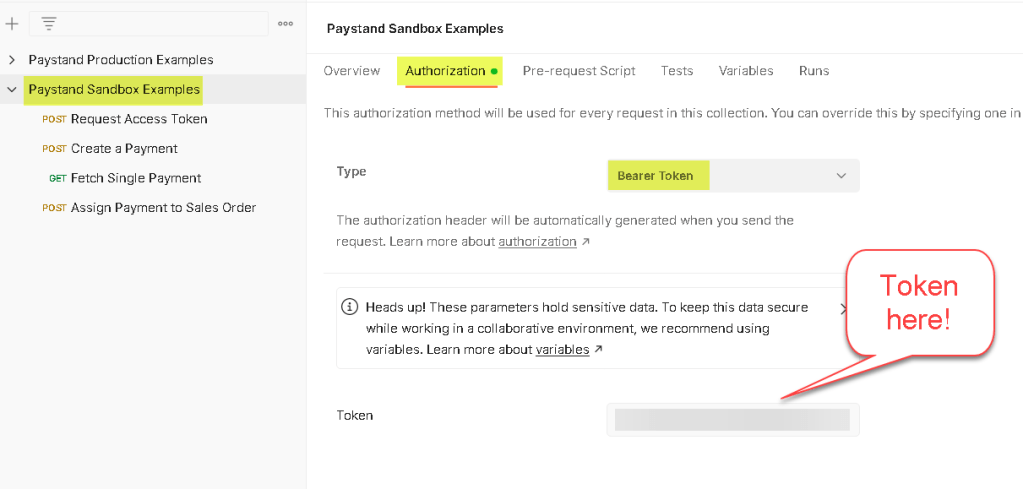
And finally, submit your request to associate the payment taken in Magento, with the sales order created in NetSuite.

Here are the other headers entered directly in the “Assign Payment to Sales Order” request. I know, I just broke my own “Good practice” recommendation.
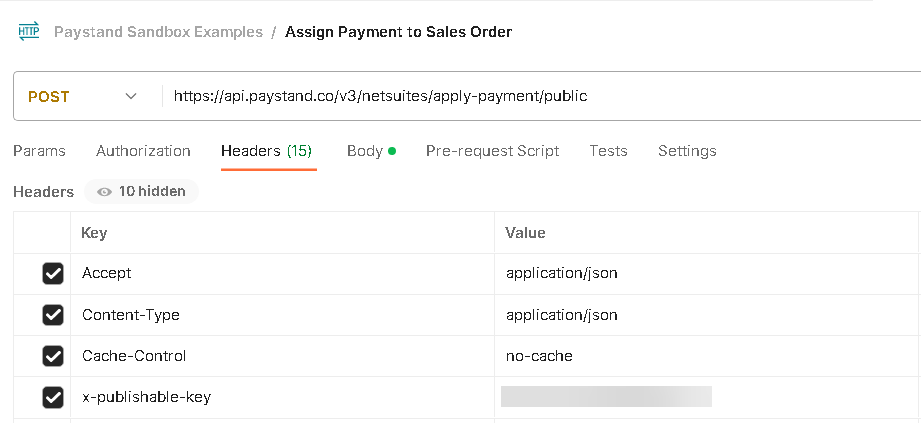
The response to this is one of two things, and I’ve made Paystand aware. Either it returns a security violation, in which case your token has expired or you’ve connected to the wrong website (there is one letter different between the production and sandbox Paystand URLs), or you get a string that says “true.” If you get “true”, it is not a guarantee that it succeeded. Problem!

One other bit of info that took us off track: We were initially told that we could not use Postman to make API calls to Paystand. This violated PCI compliance. Calling the Paystand API from outside your staging or production website would accept the call, but not honor it, doing nothing. This lead us to believe that all calls to Paystand must come from within Magento. This is absolutely not true! All of my Postman examples work (including creating and fetching a single payment) in both production and sandbox Paystand implementations.

In Summary: If you familiarize yourself with both the Magento and Paystand APIs, it’s a relatively simple task to integrate sales orders and payments between NetSuite and Magento. This article gives any decent developer enough info to do the integration in a couple of days. This is far less than it took my team and far less than we were told to expect by Paystand. It’s just not that complicated, which is a good thing.

NetSuite Magento Integration Made Easy

There are products like Celigo and Boomi that integrate NetSuite and Magento. Having worked with one of them, I found it equally as complicated as using the native Magento API. Magento has a very robust API, so here is how I handled data synchronization between the two systems. I did it directly from within NetSuite.

First, I setup an integration in Magento. System >> Integrations

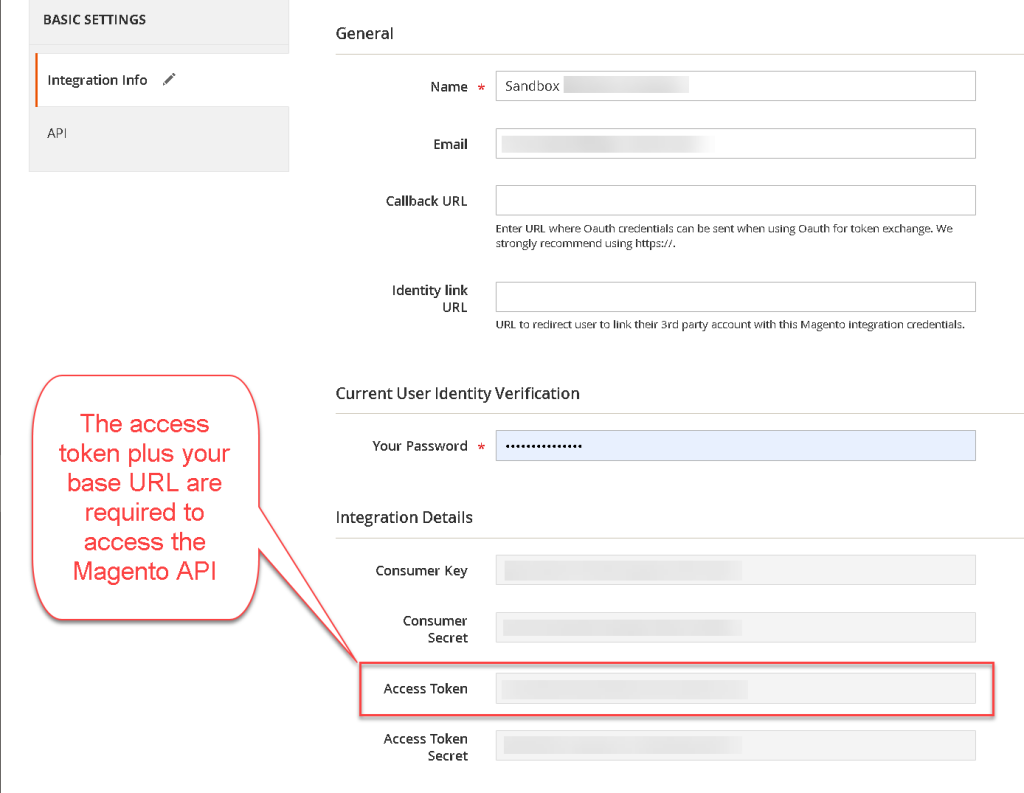
I created a new integration. Once you create your integration, you’ll need the Access Token to connect to the API.

I reviewed the API’s “Admin Endpoints” at https://developer.adobe.com/commerce/webapi/rest/quick-reference/
Get requests fetch data. Post and Put will add and update. I found that Post actually does both. It can add or update. I didn’t see that in the documentation, but found it to be true in practice.

Next, I coded up a number of example API calls using Postman (Freely downloadable tool). If you place the token you created ealier in the workspace, it can be inherited by all API calls under it.

Using the Admin endpoints, you can code up examples of “interactions” with Magento through the API. Here is an example of fetching a single product. Plug in your URL and your token in the workspace “Authorization” tab.

Translating this to code which runs directly in Netsuite looks like this. Obviously, the token you used above along with your URL replace the x’s. The response comes back as a Jasonized object in the response.body.

I found that using a Map Reduce script to collect whatever data you wish to move between the two systems in the getInputData method and then distributing all updates to the map method works best. In the example above I am updating a single product using a POST request. Magento also supports bulk inputs which allow you to submit multiple requests in a single API call. I’ve found this to be only slightly faster than doing it one at a time, and much harder to manage errors. If the requests are submitted in bulk, asynchronously, you much check progress, and once done associate each request with the response based on an identifier. If a single request fails, you’d get the error with an identifier which ties back to the actual (single) request that failed. Troublesome and only slightly faster. Once I got bulk requests working, I quit using them. The increased performance wasn’t enough to offset the extra work. Also, in my reading, I learned that Magento supports bulk inputs by simply creating an internal queue and processing each request one at a time. Pointless!

I found that in a Map Reduce script, I could fetch all products (or contacts, or categories, or whatever) by using the search feature of the Magento API. I’d get all the Magento & NetSuite products and match them in the getInputData method, passing whatever adds/updates/deletes were required to keep the data in sync to the Map method. Here is an example of reading all products from Magento.

I hope this helps clarify what is required to move data between NetSuite and Magento. It is a cheat sheet that I will refer back to myself so as not to forget lessons learned in my company’s move to Magento.

NetSuite Saved Search – Reporting based on hours in the day

I needed a saved search to monitor activity. It needed to brake the last 2 days up into two slices, 1:00 PM yesterday to 8:00 AM today and 8:00 AM today until 1:00 PM today.

The point was to email activity occurring during the second half of the day yesterday to 8:00 AM today. And a second email with activity from 8:00 AM today through 1:00 PM today. I’m only showing the criteria for one of the two saved searches, the trick was knowing how to break out the hours of the day. I accomplished that using TO_CHAR({created}, ‘HH24’). This is the search criteria.

Notice the formula is type = numeric, so I can use “greater than” and “less than” comparisons, and I had to wrap the TO_CHAR() function inside a TO_NUMERIC() function. If you omit TO_NUMERIC(), everything appears to work, but hour “10” is then less than hour “8” in the formula, since the comparison is based on character strings and not numbers.

NetSuite Dev Tools – Chat-GPT & Copilot

It seems AI is quickly making its way into developers’ tool bags. Here are some of my initial observations.

Chat-GPT: It’s great for writing functions or stubbing off SuiteScripts. I have not had much luck with a scope greater than a single function. I submitted the following to Chat-GPT and was happy with what it spit out.

Write a Suitelet in SuiteScript version 2.1 that does nothing.”

It responsede as follows:

/**
 * @NApiVersion 2.1
 * @NScriptType Suitelet
 * @NModuleScope SameAccount
 */
define([], function() {

  /**
   * Definition of the Suitelet script trigger point.
   * @param {Object} context
   * @param {ServerRequest} context.request - Encapsulation of the incoming request.
   * @param {ServerResponse} context.response - Encapsulation of the Suitelet response.
   * @Since 2015.2
   */
  function onRequest(context) {
    // Do nothing
  }

  return {
    onRequest: onRequest
  };

});

It was faster to use Chat-GPT to create this script, which I will use in debugger (after making the necessary changes), than it would have been to copy and rename a template. You can do the same for event scripts, map/reduce, scheduled, etc. It understands them all.

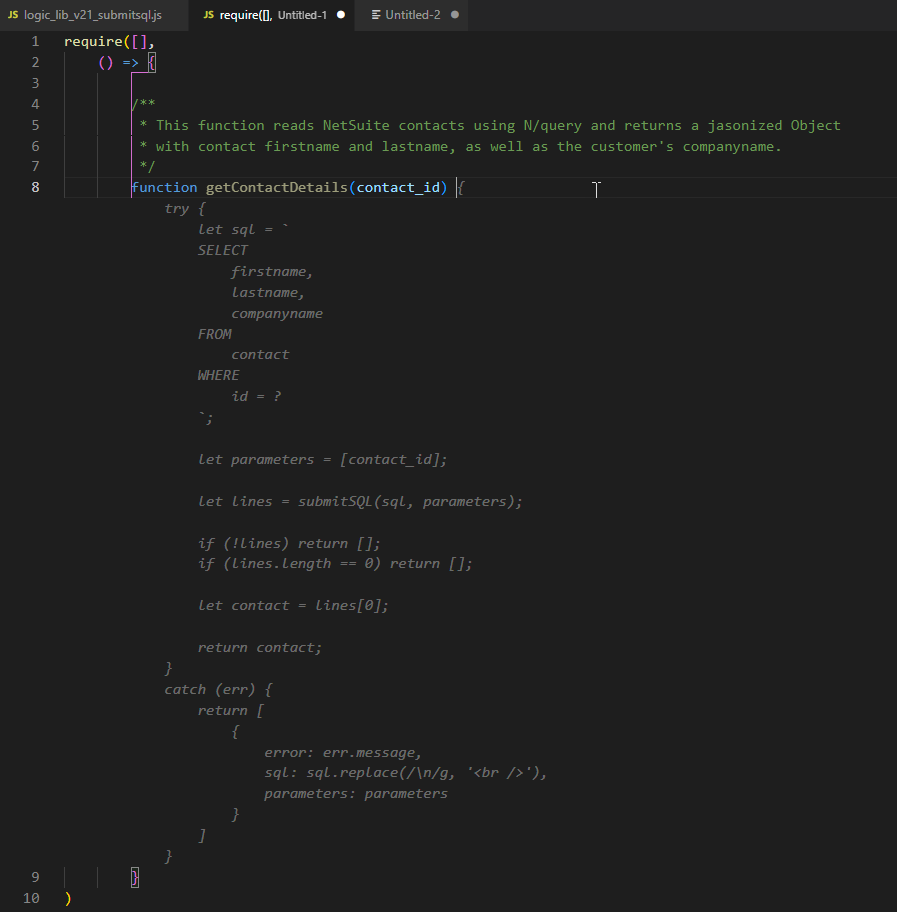
Copilot: I am much keener on Copilot than Chat-GPT in its current state. Copilot costs $10/month after a month free trial. It's worth it! Copilot will interrogate other open files/programs in vsCode, adding intellisense which incorporates functions from those files. Copilot can write whole functions, but not whole scripts. If you write a comment ahead of writing the function name, it reads your comment and incorporates that into its suggestion. In this example, I have a library open (logic_lib_v21_submitsql.js) in another tab. That library has a method called submitSQL() which accepts 2 parameters, a PL/SQL query and parameters used in the query. After writing the comment and naming the function, here was it's first suggestion.

Notice that it does not understand that companyname is not a field in the contact table. A join is required to reach companyname. It also gets the where clause wrong in the query.

When I hit [Alt] + ], here was the second suggestion, much improved! The join is still missing, but the where clause is correct. It ads a try/catch block and returns a single contact, which matches the comment.

Next, a couple of minor tweaks, adding a join to include customers, where Copilot was smart enough to auto-complete the join…

In summery (and I need to wrap it up), it’s been fun to see how AI is progressing in my industry. As developers, we are all joking now that Open AI is going to replace us. I’m old enough to know this is not true, but it can certainly change the way we write code. I’m all about efficiency, and these new AI-based tools are poised to significantly ramp up productivity.

Cheers

Printing NetSuite Item Groups in Freemarker Advanced Templates

If you use advanced templates and item groups, you got problems! Although Freemarker is a wonderful templating language, it is not a programming language. Here are some tips and tricks I learned when dealing with item groups and advanced templates.

Rule #1: The scope of variables in Freemarker is somewhat illusive. I’ll spare you the details, but recommend using unique variable names in all functions. You’ll see that in my examples.

Rule #2: Freemarker supports the creation of objects with properties. However, it will not let you update an object after it’s been instantiated.

Rule #3: If you are going to work with numbers, make double sure that whatever you’re working with is a number, variable!0 does not accomplish this.

Below is code taken from an advance template applied to sales orders. This section is where I check to make sure there are items and then looping through them to print each one on the PDFed output.

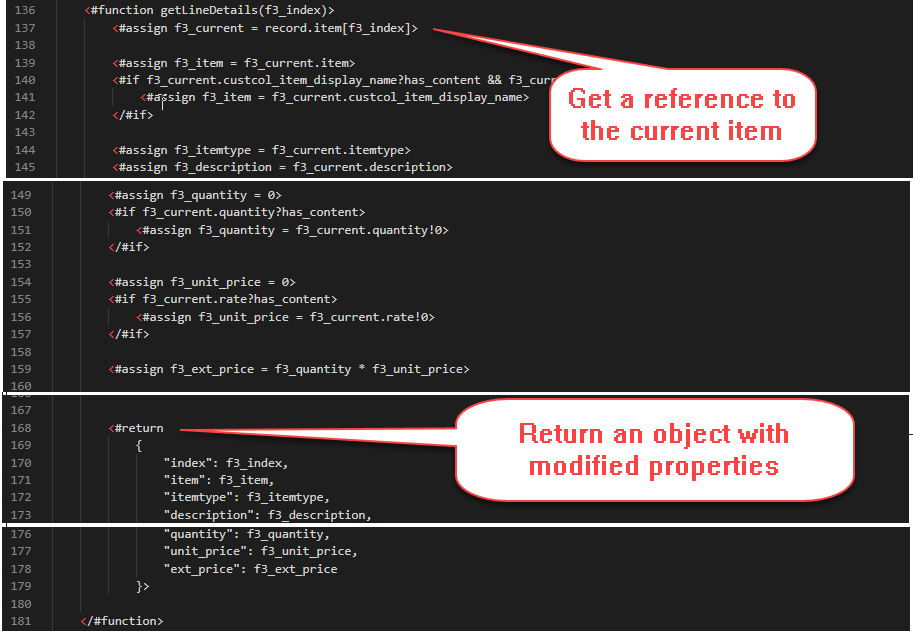
As I’m looping through all items, you see on line 503 I pass the index of the current item to the getItemDetails() function that returns an object with properties taken from the current line.

Here is where you hit a problem with “Item Group” items. Item group items consist of a “Group” line with a quantity but no unit price or extended price, followed by items of varying types, each with a quantity and unit price, followed by a “Group End” item, again with no quantity or unit price. In order to show the group item correctly with the correct totals, you need to read all items in the group keeping track of the totals yourself. Here is the twist. If the quantity on the group is not 1 and quantities of items in the group are not 1, you’re hosed! In order to get your unit price, you need to calculate the extended price of each line. When done, take the total and divide by the quantity on the original group item. This is unbelievable to me, but the quantities of items in the group already reflect the quantity of the group, BUT can be modified.

As an example, let’s say you have a group of dinnerware with quantity of 2. The items in the group are 4 plates and 4 cups. The group item will show quantity of 2. The quantity of plates in the group will be 8 and the quantity of cups will be 8. The extended price of each line must be calculated as quantity * price. If for some reason, and this is definitely possible once the group is initially added to the order, someone edits the line associated with plates and changes the quantity back to 4, the group’s total unit price and extended price can no longer be calculated by summing the unit prices of all lines and multiplying by the quantity on the group. I hope that’s not too convoluted, but it’s still true! Try it yourself. Groups, unlike Kits, can be modified independent of their definition.

So keep reading…

In line 185, you see a call to getLineDetails, which returns an object. Then lines 192 through 215 “read ahead” looking for the end of the group, keeping track of each line’s extended price (quantity * unit price). When the end of the group is located, the original line, the “Group” line, gets the total extended price. The group’s unit price is then calculated as the extended price divided by the quantity on the group. This “fixes” all the changes made to unit prices and quantities of items in the group after the group was added to the order. Inconceivable (Princess Bride)!

From before, where we called getItemDetails, you see it returns an object with modified properties. It also skips over items inside a group item, calling getGroupDetails to accumulate all details associated with the group into one object with the correct properties to print in that line.

And finally, you’ll see references to updateLine(). You’ll find that you can create objects, but you cannot modify properties of an object once it’s been instantiated. So…. you need to clone the object with the updated property and move forward with the replica. You’ll see how that is done here.

I am unable to give you the code in a form that can be copied. You may have already noticed the missing line numbers and lines through my screenshots. That is because I have removed references to the “secret sauce.” My wife just finished a 9 week cooking class taught be a master chef. She told me she learned that many of the great chefs tweak their recipes ever so slightly in cookbooks, as they don’t want anyone copying them with the result being as good as the original. I don’t consider myself a proud programmer and I’m not trying to water down the lesson, but there are some trade secrets here that you’ll just need to discover for yourself.

Best of luck, and I hope this enlightens both you and me (as I often return to these blog posts as notes). Freemarker is quirky, but it’s all we got!

vsCode Multi-Line Copy & Paste in Same Line

I just stumbled into this today and it is extremely helpful when editing HTML or JSON in vsCode.

I was editing a NetSuite Advanced Transaction Template which is written in Freemarker. There is no interactive debugging of templates in NetSuite, so I wanted to show variables as part of the page. I wanted variable names, followed by the variable’s value. Here’s how easy this was, and I hope this makes it easy to see other uses for the multi-line copy and paste functionality in vsCode.

First, here is how it works. Then I’ll share the keystrokes.

  • First, I pasted in the variables. I actually used the same multi-line edit capabilities to create the list from Freemarker <#assign> statements higher up in the page.
  • [ctl] + [alt] + [shift] to select the lines for multi-edit. Of course you [down arrow] to include multiple lines.
  • [home] to move to the beginning of each line.
  • [shift] + [end] to highlight the entire line.
  • [ctl] + c to copy within the line.
  • [end] to jump to the end of the line on all lines
  • I typed “: ${“, which completed the brackets and left the cursor in between brackets.
  • [ctl] + v to paste the duplicate variable names
  • [end] to jump to the end of each line
  • I typed “<br />”

I could see this being extremely handy when creating arrays of JSONized objects in JavaScript, or tables in HTML. I hope this helps all my fellow lazy typists to spend more time writing code and less time formatting code.

Linking System Notes to Transaction Lines

I’m still scratching my head over this one. How can you link system notes to transaction line items? I found it’s possible, but not intuitive.

Since discovering SuiteQL, I’ve tried to use it instead of saved searches. The advantage is it allows multi-level joins, where saved searches only allow single level (one and only one level) of joins.

Querying system notes in SuiteQL looks something like this.

select
*
from
(
    select
        t.id as tran_id
        , t.tranid as tran_num
        , n.date
        , case n.type when 2 then 'Set' 
            when 4 then 'Change' 
            else to_char(n.type) 
          end as change_type
        , case n.context 
            when 'SLT' then 'Script (Restlet)' 
            when 'UIF' then 'User Interface' 
            when 'WST' then 'Web Store' 
            else n.context 
          end as change_context 
        , n.field
        , n.oldvalue
        , n.newvalue
    from systemnote n
        inner join transaction t 
        on t.id = n.recordid 
        and t.type = 'SalesOrd' 
        and n.date > '10/23/2022'
        and BUILTIN.DF(t.status) in
        (
            'Sales Order : Pending Fulfillment',
            'Sales Order : Pending Billing/Partially Fulfilled',
            'Sales Order : Partially Fulfilled'
        )
    where 1=1
    and n.oldvalue != n.newvalue
    and n.type in (2,4) -- Set or Changed
) as dtbl
order by tran_num, n.date desc

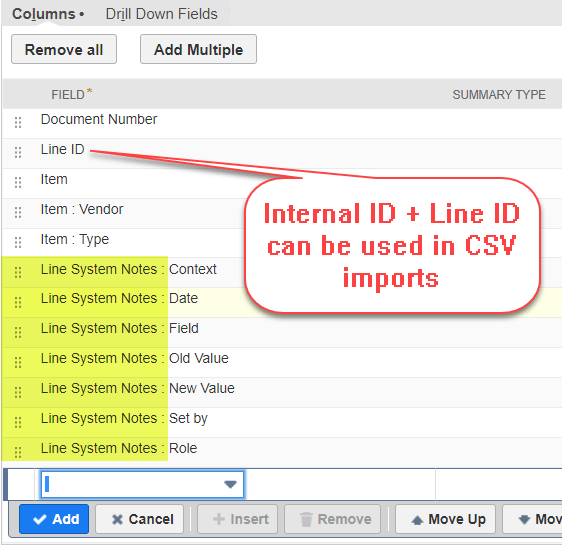
It works great, but has the limitation of not being able to link the system note directly to the transaction line. I searched to the end of the internet, and I don’t see anyone who’s solved this problem, not even Tim Dietrich, the PL/SQL Guru. However, the relationship exists in a saved search. Marty Zigman points this out in one of his blog articles. Thank you, both of you!

Of course you can always use SuiteQL to query your saved search. However, it sure would be nice if NetSuite shared the secret foreign key relationship between transaction lines and system notes in their Schema Browser. I noticed some views described in the Schema Browser “Connect Browser” tab, but I could not translate that into anything that worked in PL/SQL.

If you know more about this than I do, please share it with the rest of us. Respond to this post and I’ll include it and credit you.

Calling Magento 2 API from NetSuite

I needed a way to move data from NetSuite to Magento. Here is a simple example that creates an attribute set in Magento. This example runs in a NetSuite debugger session. It is written in SuiteScript 2.1.

To create your token in Magento. Login in as admin. Go to
System >> Integrations >> Add New Integration

Once you’ve added your integration, Magento will create an Access Token. This is your Bearer Token.

Use the Bearer Token in your header. Refer to the Magento 2 Admin REST endpoint’s documentation to correctly build the body. Here is example code.

require(['N/https'],
    (https) => {

        var header = {
            'Authorization': 'Bearer [your token here]',
            'Accept': 'application/json',
            'Content-Type': 'application/json; charset=utf-8'
        };

        var body = JSON.stringify(
            {
                "attributeSet": {
                    "attribute_set_name": "[Your attribute set name here]"
                },
                "skeletonId": 4
            }
        );

        https.post.promise({
            url: encodeURI('https://[Your Magento base domain here]/rest/default/V1/products/attribute-sets'),
            body: body,
            headers: header
        })
            .then(function (response) {
                log.debug({
                    title: 'Response',
                    details: response
                });
            })
            .catch(function onRejected(reason) {
                log.debug({
                    title: 'Invalid Request: ',
                    details: reason
                });
            })


    }
)

Calculated Fields – A Checklist

I needed away to roll up entries from a custom table to display as a single value under an item record. What a meticulous and tedious pain this was. I can’t think of any more applicable adjectives, or I’d use them. I needed a checklist!

To be fair, NetSuite is great about letting you create a saved search to display summary results in what they call a “Calculated Custom Field”. It displays as if the value was actually stored with the entity, but it’s not, it’s built on the fly. In my case, I needed to show the SuiteCommerce Advanced base image from the list of images associated with any item.

The task at hand presented multiple problems. I’ll spare you the details of the first problem, which was an inability to write a saved search listing only images associated with a single item. I learned this is not supported in NetSuite, so I had to built my own custom table. Note: I used a SuiteQL query against the ItemImage table (Thank you Tim Dietrich) along with a Map/Reduce script. This let me build a copy of the ItemImage table which WAS accessible from a Saved Search.

This brings me to the list of all quirky things required show the one file name under an item. Here is that list!

  • Identify the standard or custom table you wish to pull your value from. In my case it was a custom table called “Item Images”.
  • Create a saved search against your source table.
    • Make your search public.
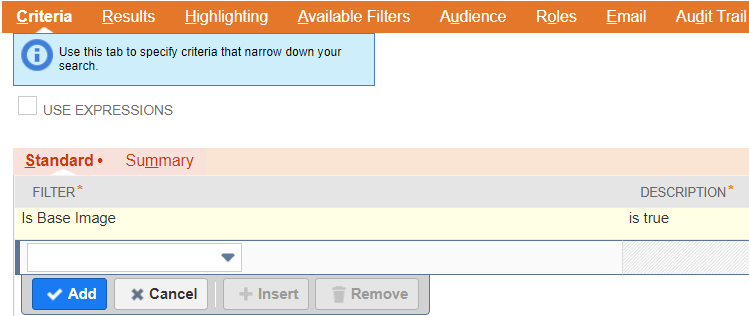
    • Add any criteria you like. In my case it was “Base Image” = true.
    • Include the entity type as the first field in your results.
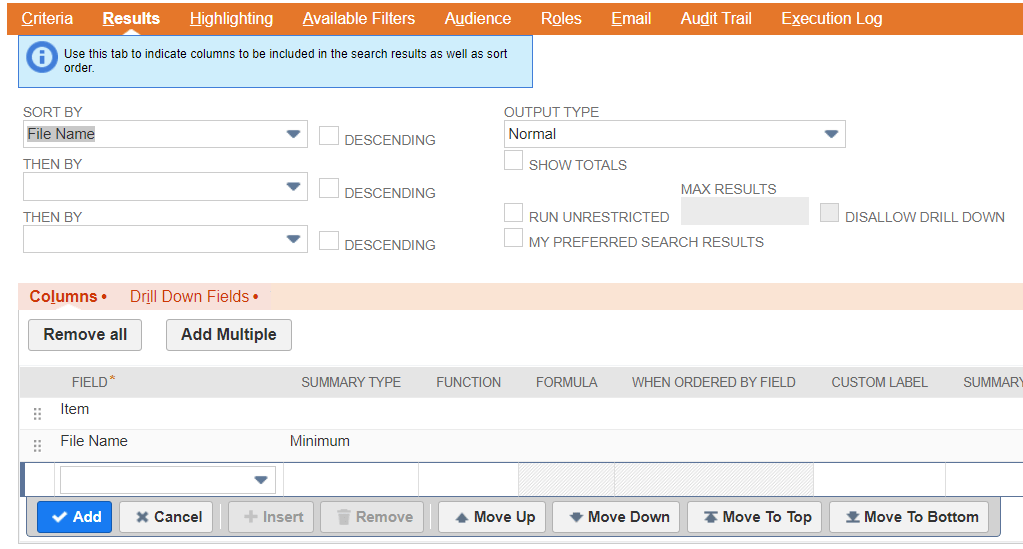
    • Make sure the results are “Summary Results”. In my case I used MINIMUM File Name
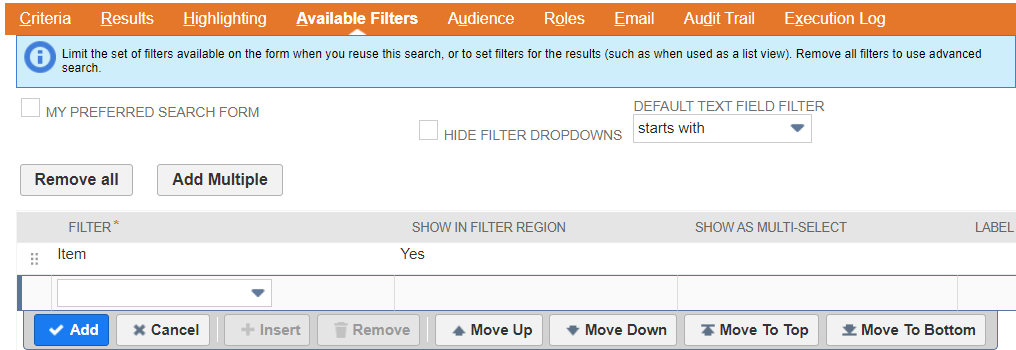
    • Create an Available filter that limits results to a single entity and make sure to check “Show in Filter Region”.
Add any criteria you like
The first field in results should be the entity, or in my case, Item. Make sure the results are “Summary Results”. I don’t believe you can select “Group” under “Summary Type”. I chose “Minimum” and it works!
Set an available filter that matches your entity type. Again, in my case, it was Item. Be sure to check “Show in Filter Region.”
  • Create a new Custom Field.
    • Pick the field type that is correct for the rolled up value you will display from your saved search.
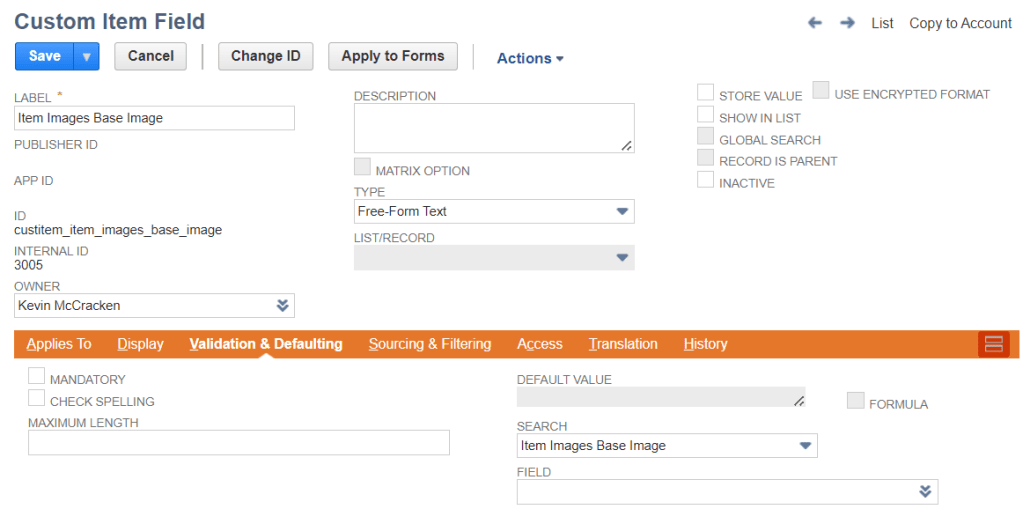
    • Uncheck “Store Value”. This value will not be stored, but calculated on the fly.
    • Under “Validation and Defaulting”, select the saved search your just created.
Select the proper field type. Uncheck “Store Value” and associate your calculated field with your new saved search.
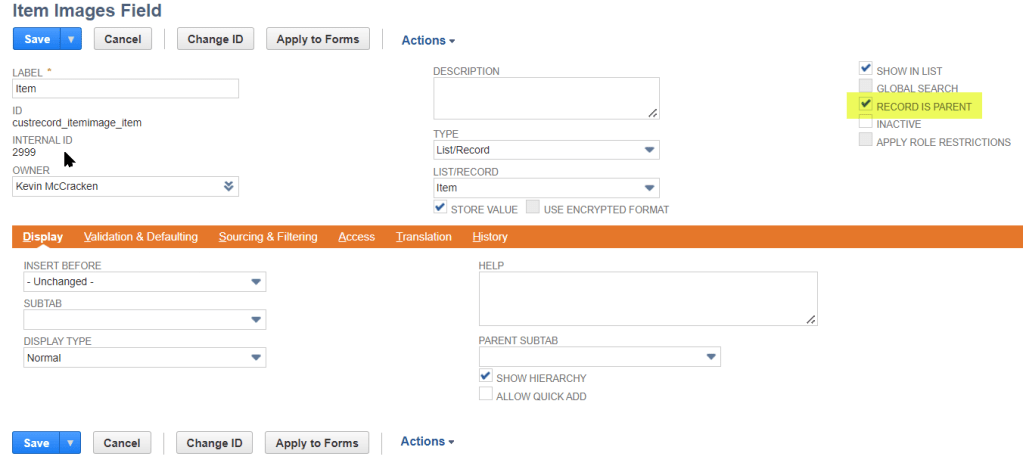
Be sure to include the parent record reference in your custom table.

Tying up lose ends, I’ll show the definition of my custom table.

Be sure your entity field is also set to “Record is Parent”.

Hopefully, in the future, if we all follow this checklist, we’ll be thinking happy thoughts about NetSuite and not letting fly any uncomplimentary adjectives. Cheers!