jQuery autocomplete is a powerful tool that can be overlooked or underutilized. Here is an example that demonstrates not only how jQuery autocomplete works, but some of its hidden potential.
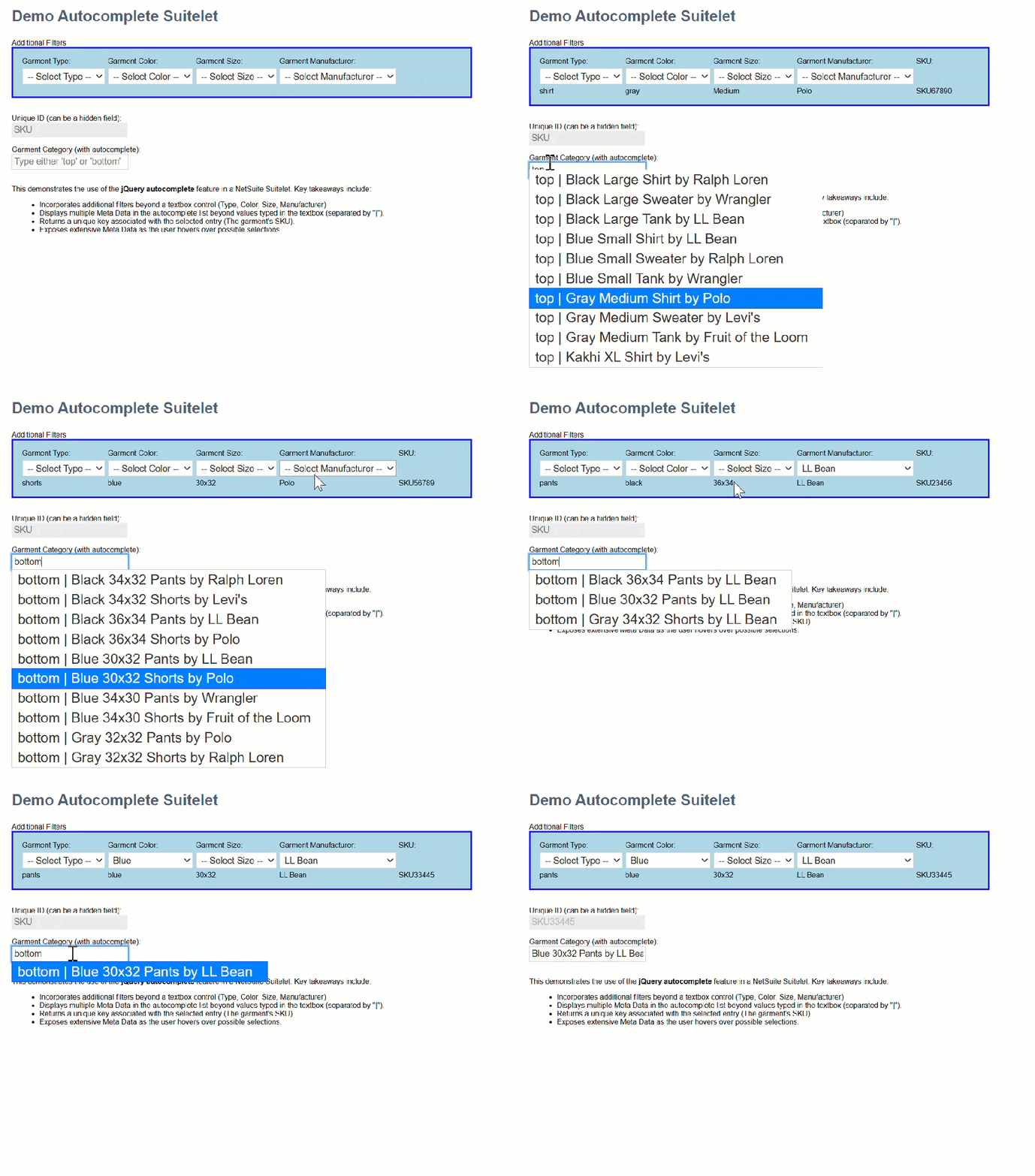
In this example I demonstrate applying the contents of multiple HTML controls to filter results of a single textbox’s autocomplete results. Here is what it looks like in action.
My data is articles of clothing. A garment’s category only includes ‘tops’ and ‘bottoms’. It’s pretty sparse for an autocomplete example, but you get the idea.
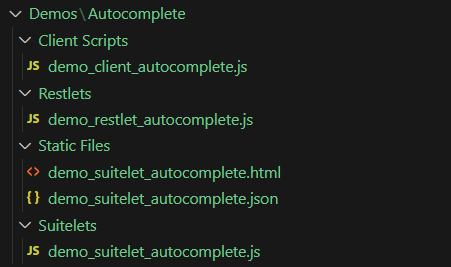
My example includes the following scripts: Suitelet, Restlet, Client, and an HTML file. The JSON file takes the place of a database. I created my JASONized data using vsCode’s Copilot. That’s a handy tip!
Here is the HTML file’s contents.
<label for="filters">Additional Filters</label><br />
<div id="filters" style="border: solid 2px blue; background-color: lightblue; padding: 10px; width: 40%;">
    <table>
        <tr>
            <td><label for="garment_type">Garment Type:</label></td>
            <td><label for="garment_color">Garment Color:</label></td>
            <td><label for="garment_size">Garment Size:</label></td>
            <td><label for="garment_manufacturer">Garment Manufacturer:</label></td>
            <td><label id="hover_sku_heading" style="display: none;">SKU:</label></td>
        </tr>
        <tr>
            <td><select id="garment_type" name="garment_type">
                    <option value="">-- Select Type --</option>
                    <option value="shirt">Shirt</option>
                    <option value="tank">Tank</option>
                    <option value="sweater">Sweater</option>
                    <option value="pants">Pants</option>
                    <option value="shorts">Shorts</option>
                </select></td>
            <td><select id="garment_color" name="garment_color">
                    <option value="">-- Select Color --</option>
                    <option value="blue">Blue</option>
                    <option value="gray">Gray</option>
                    <option value="black">Black</option>
                    <option value="kakhi">Kakhi</option>
                </select></td>
            <td><select id="garment_size" name="garment_size">
                    <option value="">-- Select Size --</option>
                    <option value="Small">Small</option>
                    <option value="Medium">Medium</option>
                    <option value="Large">Large</option>
                    <option value="XL">XL</option>
                    <option value="30x32">30x32</option>
                    <option value="32x32">32x32</option>
                    <option value="34x32">34x32</option>
                    <option value="36x32">36x32</option>
                    <option value="34x30">34x30</option>
                    <option value="36x34">36x34</option>
                </select>
            </td>
            <td><select id="garment_manufacturer" name="garment_manufacturer">
                    <option value="">-- Select Manufacturer --</option>
                    <option value="LL Bean">LL Bean</option>
                    <option value="Polo">Polo</option>
                    <option value="Ralph Loren">Ralph Loren</option>
                    <option value="Levi's">Levi's</option>
                    <option value="Wrangler">Wrangler</option>
                    <option value="Fruit of the Loom">Fruit of the Loom</option>
                </select>
            </td>
            <td></td>
        </tr>
        <tr>
            <td id="hover_type"></td>
            <td id="hover_color"></td>
            <td id="hover_size"></td>
            <td id="hover_manufacturer"></td>
            <td id="hover_sku"></td>
        </tr>
    </table>
</div><br />
<br />
<label for="garment_id">Unique ID (can be a hidden field):</label><br />
<input type="text" id="garment_id" name="garment_id" placeholder="SKU" disabled /><br />
<br />
<label for="garment_category">Garment Category (with autocomplete):</label><br />
<input type="text" id="garment_category" name="garment_category" placeholder="Type either 'top' or 'bottom'" /><br />
<br />
<p>
    This demonstrates the use of the <strong>jQuery autocomplete</strong> feature in a NetSuite Suitelet.
    Key takeaways include:
    <ul>
        <li>Incorporates additional filters beyond a textbox control (Type, Color, Size, Manufacturer)</li>
        <li>Displays multiple Meta Data in the autocomplete list beyond values typed in the textbox (separated by "|").</li>
        <li>Returns a unique key associated with the selected entry (The garment's SKU).</li>
        <li>Exposes extensive Meta Data as the user hovers over possible selections.</li>
    </ul>
</p>
Here is the client script’s contents.
/**
 * demo_client_autocomplete.js
* @NApiVersion 2.1
* @NScriptType ClientScript
*/

/*********************************************************************************
 *********************************************************************************
 FILE: demo_client_autocomplete.js
 *********************************************************************************
 *********************************************************************************/

//@ sourceURL=demo_client_autocomplete.js
define(['N/url', 'N/https'],
    (url, https) => {
        function pageInit(context) {
            $(document).ready(function () {

                let garment_id_field = $('input[name="garment_id"]');
                let garment_category_field = $('input[name="garment_category"]');

                restlet_base_url = url.resolveScript({
                    scriptId: 'customscript_demo_restlet_autocomplete',
                    deploymentId: 'customdeploy_demo_restlet_autocomplete',
                    returnExternalUrl: false
                });

                /**
                 * What's going on here is making functions available in the global scope.
                 * You can see that it also keeps them unique by exposing them inside a
                 * JavaScript namespace called demo_autocomplete_client.
                 */
                demo_autocomplete_client.restletGet = restletGet;
                demo_autocomplete_client.restletPost = restletPost;

                /**
                 * You turn on autocomplete via the autocomplete method associated with
                 * the input[type=text] control.
                 */
                garment_category_field.autocomplete({
                    source: function (request, response) {
                        let type = $('select[name="garment_type"]').val();
                        let color = $('select[name="garment_color"]').val();
                        let size = $('select[name="garment_size"]').val();
                        let manufacturer = $('select[name="garment_manufacturer"]').val();
                        /**
                         * In addition to typed text, you can send additional parameters to act as
                         * filters in the autocomplete responses.
                         */
                        restletGet(
                            'method=autocomplete' +
                            '&category=' + request.term + // <<<=== request term contains the typed text
                            '&type=' + type +
                            '&color=' + color +
                            '&size=' + size +
                            '&manufacturer=' + manufacturer
                            ,
                            function (data) {
                                response(JSON.parse(data));
                            }
                        );
                    },
                    minLength: 3,
                    /**
                     * This event fires on selection of one of the rows in the autocomplete list.
                     * Note the ui.item contains all properties you wish to send back.
                     *
                     * Properties that must be returned are Label and Value.
                     * Label: is what displays in the selectable list.
                     * Value: would typically represent an associated value.
                     */
                    select: function (event, ui) {
                        event.preventDefault();
                        garment_id_field.val(ui.item.value);
                        garment_category_field.val(ui.item.name);
                    },
                    /**
                     * This event fires whenever the user hovers over a possble selection.
                     */
                    focus: function (event, ui) {
                        $('#hover_size').text(ui.item.size);
                        $('#hover_color').text(ui.item.color);
                        $('#hover_type').text(ui.item.type);
                        $('#hover_manufacturer').text(ui.item.manufacturer);
                        $('#hover_sku_heading').show();
                        $('#hover_sku').text(ui.item.sku);
                        event.preventDefault();
                    },
                    close: function (event, ui) {
                        event.preventDefault();
                    },
                    change: function (event, ui) {
                        event.preventDefault();
                    }
                });

                $('input[name="garment_category"]').focus(
                    function () {
                        $('input[name="garment_category"]').val('');
                        $('input[name="garment_id"]').val('');
                    }
                )
            });
        }

        let restlet_base_url;

        function restletGet(parameters, callback) {
            return https.get.promise({
                url: restlet_base_url + '&' + parameters
            })
                .then(response => {
                    callback(response.body);
                })
                .catch(
                    reason => {
                        alert('error reason: ' + reason);
                    }
                )
        }

        function restletPost(parameters, callback) {
            return https.post.promise({
                url: restlet_base_url,
                body: parameters
            })
                .then(response => {
                    callback(response.body);
                })
                .catch(
                    reason => {
                        alert('Error: ' + reason);
                        callback('fail');
                    }
                )
        }

        return {
            pageInit: pageInit
        };
    }
);
var demo_autocomplete_client = {
    restletGet: () => { return false; }
    ,
    restletPost: () => { return false; }
}
And finally, here is the Restlet’s contents.
/**
 * @NApiVersion 2.1
 * @NScriptType restlet
 */
define(['N/file'],
    (file) => {

        function GET(context) {
            if (context.hasOwnProperty('method')) {
                let method = context.method;
                switch (method.toLowerCase().trim()) {
                    case 'autocomplete':
                        if (context.hasOwnProperty('category')) {
                            return auto_complete(context.category, context.type, context.color, context.size, context.manufacturer);
                        }
                        break;
                }
            }
            return 'Method not found';
        }

        function auto_complete(garment_category, garment_type, garment_color, garment_size, garment_manufacturer) {
            let sample_data = file.load({
                id: './demo_suitelet_autocomplete.json'
            }).getContents();
            let sample_data_json = JSON.parse(sample_data);

            return JSON.stringify(
                sample_data_json.filter(
                    (item) => {
                        return item.category.toLowerCase().indexOf(garment_category.toLowerCase()) !== -1;
                    }
                )
                    .filter(
                        (item) => {
                            return !garment_type || (garment_type == item.type);
                        }
                    )
                    .filter(
                        (item) => {
                            return !garment_color || (garment_color == item.color);
                        }
                    )
                    .filter(
                        (item) => {
                            return !garment_size || (garment_size == item.size);
                        }
                    )
                    .filter(
                        (item) => {
                            return !garment_manufacturer || (garment_manufacturer == item.manufacturer);
                        }
                    )
                    .map(
                        (item) => {
                            let label = `${item.category} | ${item.name}`;
                            return {
                                label: label,
                                value: item.sku,
                                name: item.name,
                                color: item.color,
                                size: item.size,
                                type: item.type,
                                manufacturer: item.manufacturer,
                                sku: item.sku
                            }
                        }
                    )
                    .sort(
                        (a, b) => {
                            return a.label.localeCompare(b.label);
                        }
                    )
                    .slice(0, 10) // limit to 10 results
            );

        }

        return {
            get: GET
        }
    }
)
I’ve left out 2 of the five files. This post was getting long and those should be relatively straightforward.
Cheers!
 NetSuite Experiences