React – Forms Submission Simplified

I’m researching using React in NetSuite. Step 1, decide if React is worth using. As I’ve attended several developer conferences, I’m getting the impression that unless I use React, I’m some kind of dinosaur and working way too hard at UI. OK… let’s give React a try.

My first stumbling block was the amount of code I needed to write to render a component. Crazy! It was complex and wordy. I must be missing something. So I stopped and looked for a simple example of a component that might represent 80% of the functionality I’d need in all future React components. How about simply submitting a standard HTML form.

In a PluralSight class on React, I learned there are 2 ways to build a React component, using JavaScript classes or functions with hooks. Confusing! According to my instructor, classes are on their way out. Forms and hooks are the way to go. However, most forms submission examples I found were written using JavaScript classes.

All examples I found using functions and hooks either didn’t work or were overly complicated. I wanted a SIMPLE example. So I wrote one.

Here is my simple React component built using functions and hooks. To run it, open http://jscomplete.com/playground and paste in this code.
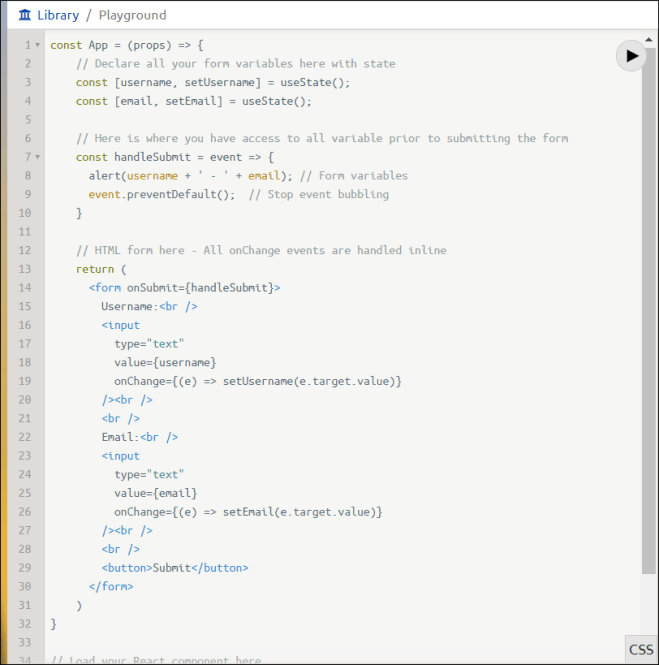
jscomplete code

The key things to understand are these:

  1. When you create JavaScript variables which are bound to the input fields in your form, you create them as useState() objects. This translates to an array of 2 elements. The first is the variable used in the binding. And the second is a function that sets the stateful variable’s value. So username and email are stateful strings. setUsername and setEmail are functions which change the state of username and email.
  2. The value attributes of each of the 2 input fields in the form are bound to the 2 stateful strings. This is done in the value={variable name}. The curly brackets tell React to do the binding.
  3. The onChange events are each executing an inline function that accepts the EventArgs (e) and then passes the changed value to the corresponding setter function which updates the associated stateful string variable.

Here is my code in a format you can cut and paste directly into jscomplete.com.

const App = (props) => {
// Declare all your form variables here with state
const [username, setUsername] = useState();
const [email, setEmail] = useState();

// Here is where you have access to all variable prior to submitting the form
const handleSubmit = event => {
alert(username + ‘ – ‘ + email); // Form variables
event.preventDefault(); // Stop event bubbling
}

// HTML form here – All onChange events are handled inline
return (
<form onSubmit={handleSubmit}>
Username:<br />
<input
type=”text”
value={username}
onChange={(e) => setUsername(e.target.value)}
/><br />
<br />
Email:<br />
<input
type=”text”
value={email}
onChange={(e) => setEmail(e.target.value)}
/><br />
<br />
<button>Submit</button>
</form>
)
}

// Load your React component here
ReactDOM.render(
<App />,
document.getElementById(‘mountNode’)
);
SuiteScript – Dealing with Items (Revised)

The great thing about using a blog to keep all my notes, is people actually read this stuff. Amazing! Yesterday, I published a problem that seemed ridiculously overcomplicated. Well, a special shout-out to Michoel Chaikin for agreeing with me and helping me simplify.

The problem: In order to update an item, you have to know the actual type, not just the base type. So I needed ‘serializedinventoryitem’ or at least ‘inventoryitem’ in order to send through my update. There was no good way to start with the base type of ‘item’ and get the job done. This is from yesterday’s post.

“You can’t use nlapiLoadRecord(‘item’,…) or nlapiSubmitField(‘item’,…)”

So… how to get ‘serializedinventoryitem?’ The only thing that I could think of was to use a search. But even then, the stinking record type was illusive. That was the point of yesterday’s post.

Apparently, nlapiLookupField doesn’t suffer the same restrictions as the other APIs listed above. It lets you start with the base type, ‘item’, and read the actual record type. Michoel’s suggestion was to use this simple solution to activate a part. I tested this and it works.

nlapiSubmitField(
nlapiLookupField(‘item’, internalid, ‘recordType’)
, internalid, ‘isinactive’, ‘F’
)

Cudos Michoel! Nicely done.

SuiteScript – Dealing with Item Types

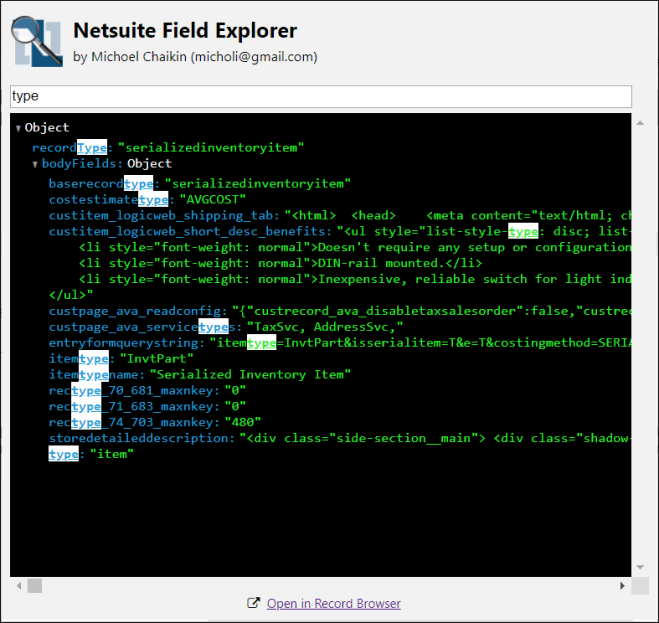
I wanted to activate an inactive item from code. Interestingly enough, I could search for the item using the base type of ‘item’. However, I could not update the item unless I used the item’s true type. Here’s my reminder to myself of where the true type comes from.

If you search for an item using the base type of ‘item’, the only column that can be returned in the search results is ‘type’ which equals ‘item’. You’ve learned nothing!

Field Explorer

Here is the doc on Item search fields. It comes from…

Record Browser

And if you scroll way down the page into the “Search Columns” section…

Search Results

results[0].getFieldValue(‘type’) == ‘item’     // Not helpful!

You can’t use nlapiLoadRecord(‘item’,…) or nlapiSubmitField(‘item’,…)

So here’s the secret handshake. Search using the type of ‘item’ and then check the recordType property on the returned records.

Debugger

This seems way more difficult than it needs to be. Oh well, just another day of writing software!

Here’s my finished product.

Restlet

And code you can cut and paste…

ActivateItem: function(internalid) {
try {
var filter =new nlobjSearchFilter(‘internalid’, null, ‘is’, internalid);
var columns =new Array();
columns.push(new nlobjSearchColumn(‘itemid’));
var results = nlapiSearchRecord(‘item’, null, filter, columns)
var recordType =null;
if (results.length >0) {
recordType = results[0].recordType;
}
if (recordType !=null) {
nlapiSubmitField(recordType, internalid, ‘isinactive’, ‘F’);
}
return”success”;
} catch (err) { return “error: ” + err.message; }
}

SuiteTalk – Consistent Price Levels

I’m evaluating using consistent price levels. By that, I mean something that looks like this:

Price Levels Listed

Keep in mind that you already have several superfluous price levels which you might want to delete. However, you cannot delete your Base Price (which I’m calling List Price) and Online Price. They are standard and must remain. All other price levels can be removed. So out of the box, you may choose to remove the three alternate price levels that come with NetSuite.

I had to make sure they were not associated with any customers. Here’s how I did that.

I’M DOING ALL THIS IN SANDBOX, and I’d highly recommend you do the same! Test your code before going live!

FindCustomersWithPriceLevels

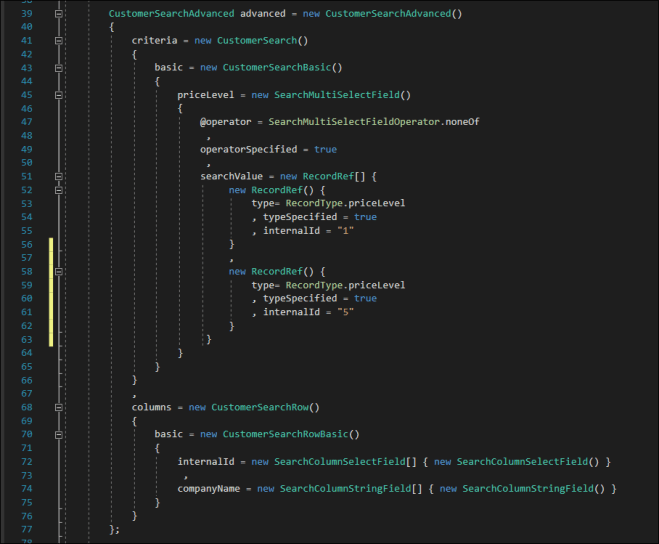
From this, I build a list of customers, including only the internalid and priceLevel properties. I needed this list to disassociate price levels I wanted to delete from all customers using that price level. This code clears all price levels except the Base Price (what I call List Price) from every customer in search results.

BuildCustomerList

Then I updated customers to remove unwanted price levels. If you have more than 1,000 customers, you’ll need to break this operation up into pages. I’ve written other articles on how to do that. Here’s a tip.

PagingTips

And finally, Here’s the secret sauce for adding uniformly spaced price levels. There is a limit of 1,000 price levels. So plan these carefully for your organization’s needs.

AddPriceLevels

UpsertList

And here’s the code in a form you can cut and paste into your Visual Studio project. I come with no guarantees. Use it at your own risk. Darned attornees!

class PricingLevelsAdd
{
static void Main(string[] args)
{
System.Net.ServicePointManager.SecurityProtocol = SecurityProtocolType.Tls12;

Console.WriteLine(“Getting datacenter agnostic URL”);

NetSuiteService service = new DataCenterAwareNetSuiteService(TBAtoken.account);
service.Timeout = 1000 * 60 * 3;

List<PriceLevel> priceLevels = new List<PriceLevel>();

int i = 0;

for (double multiplier = 1; multiplier < 1000; multiplier++)
{
double discountPercent = 100 – (multiplier * 0.1);
string externalid = $”PL{discountPercent}”;

priceLevels.Add(
new PriceLevel()
{
name = String.Format(“{0:0.0}% Multiplier”, discountPercent)
, externalId = externalid
, discountpct = discountPercent
, discountpctSpecified = true
}
);

i++;

if (i % 25 == 0)
{
UpsertList(service, priceLevels);
i = 0;
}

}

if (i > 0) UpsertList(service, priceLevels);

Console.WriteLine(“Hit enter to close this window”);
Console.ReadLine();

}

private static void UpsertList(NetSuiteService service, List<PriceLevel> pricelevels)
{
service.tokenPassport = TBAtoken.createTokenPassport();
WriteResponseList writeResponseList = service.upsertList(pricelevels.ToArray());

int j = 0;

foreach (WriteResponse writeResponse in writeResponseList.writeResponse)
{
if (writeResponse.status.isSuccess)
{
Console.WriteLine($”{((PriceLevel) pricelevels[j]).name} – Success!”);
}
else
{
Console.WriteLine($”{((PriceLevel) pricelevels[j]).name} – Failed!”);
Console.WriteLine($”{writeResponse.status.statusDetail[0].message}”);
}

j++;
}

pricelevels.Clear();
}
}


SuiteScript – Remove Save Button

I was tasked with locking down item fulfillments. We wanted our office staff to be able to create an item fulfillment, but not edit an existing item fulfillment. I tried to lock this down through conventional security settings. Ideally, Create should have worked. But it did not. View also came up short.

Security Settings

For better or for worse, my solution was to code an event script that checked both context and role and removed buttons.

When viewing an item fulfillment, I removed the Edit button.

View no buttons

And since there are lots of ways to get into edit mode besides this button, I removed the Save button from the edit screen. It looks just like the view screen. Same buttons. Editable, but no means to save changes.

Edit no buttons

Here is the event script that removes those buttons.

Code to remove buttons

This was a pretty straightforward task. The only trick was getting the names of the buttons. To get those, I went to our sandbox and debugged an existing transaction. I stopped the code in this event script and looked at the Form object. From there I drilled into the Buttons array and read the names of all buttons. When I removed the Save button, all other child buttons (Save & Bill, Save & New, etc.) went too.

One more note. I tried to use form.getButton(‘submitter’).setDisabled(true). This did not work. The button remained present and active. This was not the case in view mode. That option worked fine and the button was grayed out and inactive. However, since I was removing buttons, I decided to be consistent and remove them all.

Here is the code in a format that you can cut and paste.

var logic_events_item_fulfill = {
BeforeLoad: function(type, form) {
var context = nlapiGetContext().getExecutionContext();
var role = nlapiGetRole();
if (context ==”userinterface”&& role ==1011) {
if (type ==’view’) {
form.removeButton(‘edit’);
}
elseif (type ==’edit’) {
form.removeButton(‘submitter’);
form.removeButton(‘resetter’);
}
}
}
,
BeforeSubmit: function(type) {
}
,
AfterSubmit: function() {
}
};

SuiteCommerce Advanced – QuickStart

I’m researching a project that touches both NetSuite and SuiteCommerce Advanced. Part of my research meant getting a development environment in place to review code in SCA version Kilimanjaro. We’ve hired consultants to modify SCA, so I needed to get the latest source tree up and running locally. Here’s my quick-start guide. Warning: It’s not that quick!

This is mostly outlined in the SuiteCommerce Advanced Developer’s Guide.

  1. In Windows, I went to Add-Remove Programs and uninstalled node.js. It’s too new and you can’t get rid of it if you install NVM after node.js is already installed.
  2. Install Node Version Manager, NVM (Google it!)
  3. Using nvm install the latest version of node.js. You’ll want that for everything except running SCA locally. Then use nvm to install node.js version 6.11.5.
    • nvm install latest
    • nvm install 6.11.5 (required for Kilimanjaro)
    • nvm list
    • nvm on
    • nvm use 6.11.5
    • node -v
  4. Install version 3.9.1 of gulp. I installed it both globally and locally. I’d bumped into problems where it said it needed to be installed locally. The documentation says it only needs to be installed globally. Don’t know!
    • npm install –global gulp@3.9.1
    • npm install gulp@3.9.1
  5. Download the latest current version of SCA source code. Each time you publish SCA, a backup of the code is placed in the file cabinet.
    download source
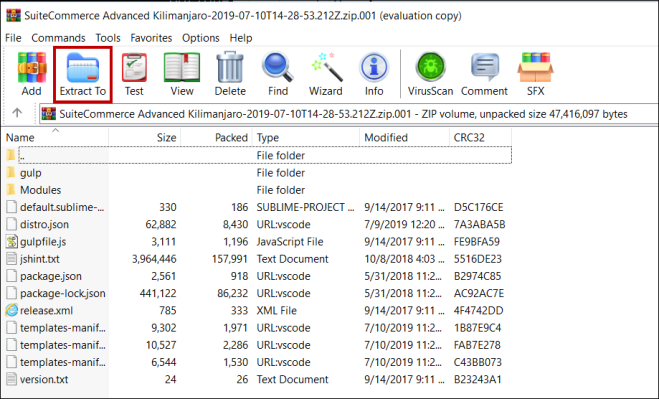
  6. Unzip the files using an unzipper other than Windows built-in unzipper. I downloaded WinRAR. When you open the *.zip.001, it unzips both files. Crazy!
    WinRAR
  7. I unzipped *.zip.001 and 002 to c:\_SCA_Dev. However, there are missing files required to get your dev environment built.
  8. Return to file cabinet and download the original source files.
    Original Source Files
  9. Extract these using whatever unzipper you like to another directory. I used c:\_SCA.
  10. Copy the original source over the top of the most current source (C:\_SCA over C:\_SCA_Dev). When prompted to replace files, say NO, do not overwrite.
  11. Open a command prompt as administrator and change directory to the new code’s directory. In my case this was C:\_SCA_Dev.
  12. Install all the required modules.
    • npm install
  13. Run gulp with no parameters to initialize it.
    • gulp
  14. Start your local developer web server.
    • gulp local
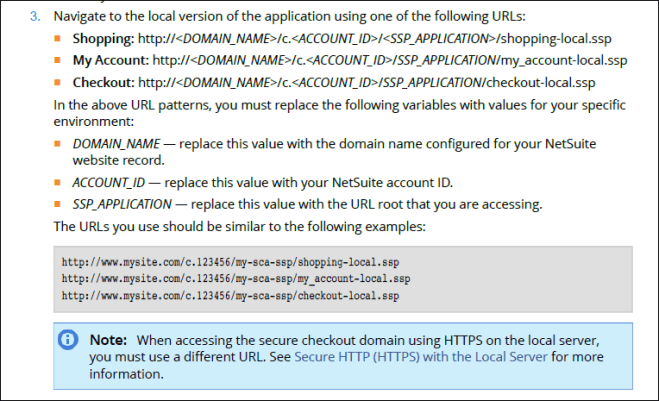
  15. Open a browser and navigate to the testing URL for your SCA website.
    • http://[Your SCA Website URL]/c.[Your Account Number]/my-sca-ssp/shopping-local.ssp
      Testing URL

That’s it. Super simple (I’m being totally facetious!).


BOOM! CORS Error – SCA to NetSuite

I just got off the phone with NetSuite support, after exhausting all efforts to make a client-side call from a page in our SuiteCommerce Advanced website directly to NetSuite. It was getting a CORS (Cross-Origin Resource Sharing) scripting error. 

Here’s what’s going on. We were looking for a way to get client-side access to a public Suitelet or Restlet in NetSuite. The problem: It was blowing up with a CORS error. Apparently, Netsuite does not support cross-site scripting, even from one of our own domains, SCA.

Platform Overview


Here is the exact scenario which brought on the call to NetSuite support. We wanted to click a button in the SCA page which would fetch additional warehouses with our product. This data comes from custom record types in NetSuite. So the NetSuite developer knows where that data lives, the SCA developer does not. At this point, the conversation went something like this, “Hey, I’ll just make that data available to you through a public Suitelet. It’s not proprietary information. You can see it on the page. Why not?

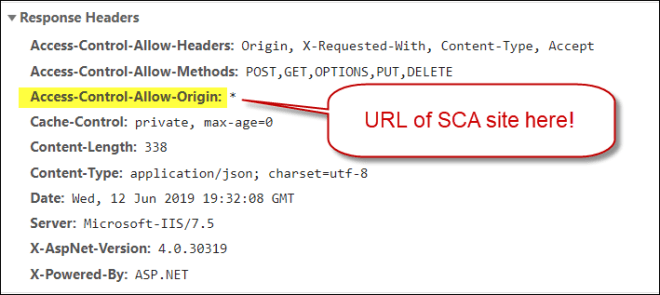
However, we hit the wall with a CORS error from NetSuite. So… You’d think that since NetSuite and SCA are one and the same, NetSuite’s public Suitelets would carry a response header that looked like this:

Access-Control-Allow-Origin: [URL of SCA website]

6-12-2019 2-32-32 PM

However, you’d be wrong. Without the response header (supplied by the web service), all browsers block the AJAX call back to the requested web service.

I’ve asked NetSuite to make this a “feature request.” The reason I believe it is important is that NetSuite and SCA have no mechanism for sharing JavaScript libraries. This forces SCA developers to know things the NetSuite admins and developers have traditionally been responsible for, in this example, custom record types. With shared libraries, all this complexity could be encapsulated in JavaScript namespace. Without it, there needs to be better communication between the two domains, so code isn’t duplicated.

If there were no CORS error, any web developer with little or no SCA training, could make the kind of change we were attempting here. It could live in the Handlebars template, which is basically raw HTML and JavaScript.

Since CORS blocked us, the code had to move to server-side SCA, where an SCA developer had to write it. Darn!


NetSuite Hosting Changes – Very Positive!

I’ve discussed NetSuite’s performance in several previous blogs. My complaint has been the consistency of response times. They vary wildly! To NetSuite’s credit, they have addressed the problem and the results are positive.

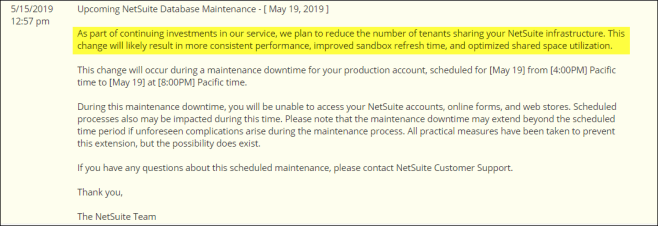
On May 15th, I received this notice. Changes were coming.

Admin Notice

Today, June 4th, I checked to see how we are doing after the change. Here’s a quick look. No change would mean we’d still see transactions with the highest response times wandering up in the 20 to 30-second range. Improvements would come in the form of reducing the standard deviation and making all transactions fall more consistently under 10 seconds.

And now… drum roll please… the results.

Heat Map

This is the last 7 days of our worst performing transaction, saving a sales order. The sample set is small, but the improvements in performance and consistency are huge.

I’ll remind you that the column titled “Server” includes times shown under “SuiteScript” and “Workflow.” That’s why I split out those 2 columns. I’ll also note that what I’d observed in the past was elongated server times which also elongated SuiteScript and workflow time. The problem, the server (shared host) was way too busy. And utilization was driven by multiple shared tenants simultaneously posting a flurry of transactions.

NetSuite’s change, reducing the number of shared tenants per host, appears to have been a good one. My notes that came from SuiteWorld 2019 discussed Oracles investment to NetSuite. This was one of the areas where Oracle was injecting capital. I’d say, this is turning out to be a winner! Way to go Mark Hurd.

SuiteTalk in C# – Direct casting of types

C# is a Typeful language. That can cause problems when coding SuiteTalk in C#. Ever search for an item, entity or transaction and want to turn right around and update it, not knowing it’s type? Yep… I’ve been there too.

In order to build out this example, I’m going to just clip some code. I don’t have a good working example. However, I think you’ll get the idea.

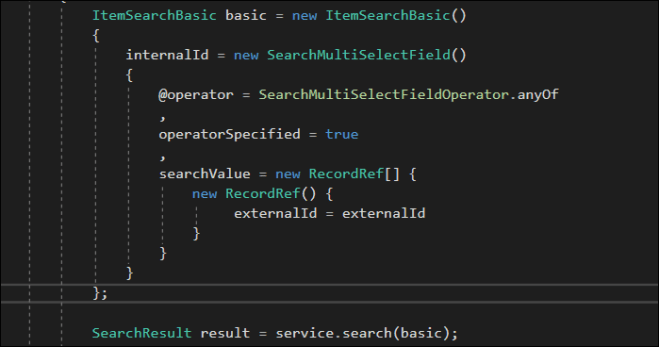
So you search for an item record like this. I’m searching by external id. However, what you get back could be an object of any number of different types.

Search Example

If the search was successful, it will return:

(Record) result.recordList[0]

The problem…

What you need is not an object of type Record, but an Item (the base type) which can be cast to a type of one of the following: InventoryItem, SerializedInventoryItem, NonInventoryItemForSale, and so on. There are a bunch.

var UpdateItem = new Record();

What you really want is something that looks like this:

var updateItem= new InventoryItem() {…};
var updateItem= new SerializedInventoryItem() {…};
var updateItem= new NonInventoryItemForSale() {…};

Or something like this:

var updateRecRef= new RecordRef() { type = RecordType.InventoryItem, …};
var updateRecRef= new RecordRef() { type = RecordType.NonInventoryItem, … };
var updateRecRef= new RecordRef() { type = RecordType.NonInventoryForSale, … };

Here are two examples that take care of all the casting without knowing the object type of result.recordList[0].

var UpdateRec = Activator.CreateInstance(result.recordList[0].GetType());

Type type = result.recordList[0].GetType();
PropertyInfo pi = type.GetProperty(“internalId”);
string internalId = pi.GetValue(result.recordList[0]).ToString();
pi.SetValue(UpdateRec, internalId);

pi = type.GetProperty(“externalId”);

string externalId = pi.GetValue(result.recordList[0]).ToString();
pi.SetValue(UpdateRec, externalId);

service.update(UpdateRec);

and

var UpdateRecRef = RecordRef() {
     type = (RecordType) Enum.Parse(typeof(RecType), result.recordList[0].GetType().Name, true)
};

service.delete(UpdateRecRef);

Both these examples handle the conversion from type = Record to type of some flavor of Item. In the second example, the type is mapped to one of the Enum options of RecordType.InventoryItem, RecordType.SerializedInventoryItem, RecordType.NonInventoryItemForSale and so on.

SuiteScript Filter Expressions

I’m writing this for a colleague, but figured it wouldn’t hurt to put it somewhere where I can find it again for myself!

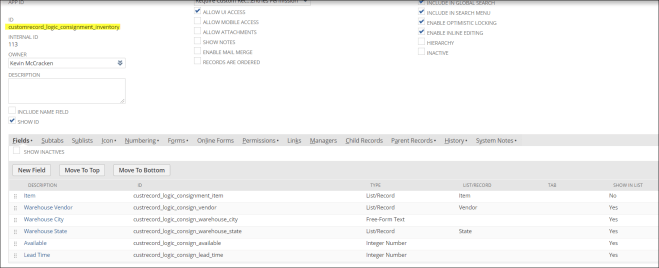
Start here. This is another post that describes how to set up a custom record type called “Consignment Inventory.” Here’s what you get from that.

Consignment Inventory Definition

Now, let’s create some SuiteScipt server-side code to read that custom record type using a filter expression. It should be pretty self-explanatory.

FilterExpression Code Example

Here is a link to a SuiteAnswers article that includes all the SuiteScript 1.0 filter operators.

https://netsuite.custhelp.com/app/answers/detail/a_id/10565/kw/filter%20expression/related/1

And here is the code that you can paste into your project.

var my_namespace = {
useFilterExpression: function() {
var filterExpression = [
[
[‘custrecord_logic_consign_lead_time’, ‘greaterthan’, 0]
, ‘and’,
[‘custrecord_logic_consign_lead_time’, ‘notgreaterthan’, 14]
]
];
var columns =new Array();
columns[0] = new nlobjSearchColumn(‘custrecord_logic_consignment_item’);
columns[2] = new nlobjSearchColumn(‘custrecord_logic_consign_lead_time’);
columns[2].setSort(false);
var searchResults = nlapiSearchRecord(‘customrecord_logic_consignment_inventory’, null, filterExpression, columns);
var result =new Array();
if (searchResults) {
for (var i =0; i < searchResults.length; i++) {
result.push(
{
‘item’ : searchResults[i].getValue(‘custrecord_logic_consignment_item’)
, ‘leadtime’ : searchResults[i].getValue(‘custrecord_logic_consign_lead_time’)
}
);
}
}
}
};